Picture Calendar for Kids
A fun app for kids to learn how to use a calendar and also learn calendar vocabulary.
Parents
Other features include:
Kid Mode: Turn on the lock button in the header to create a view-only experience. While Kid Mode is on, children cannot edit entries, rename or share the calendar, or sign out. A four-digit parent PIN, created during the first use, is required to turn it off.
View-Only Sharing: Calendar owners can select the “Share” button in the header to turn on sharing and copy a view-only link that anyone can open.
Find a Day: Quickly jump to any date on the calendar.
Holiday Picker: Choose which holidays appear on the calendar. Available options include holidays from the United States, Canada, France, the United Kingdom, and Mexico.
Save the website to your home screen for quick and easy access. See how-to below.
Use this app to help your child keep track of special days, activities, and events. Add an entry with a photo to help them remember what happened on a particular day.
Have more than one child? Sign up for an account to create a separate calendar for each child.
You can also share the calendar with your child’s speech therapist or other providers. They can use it to help your child recall and talk about events that happened at home. The calendar can also support conversations about past experiences and upcoming activities.
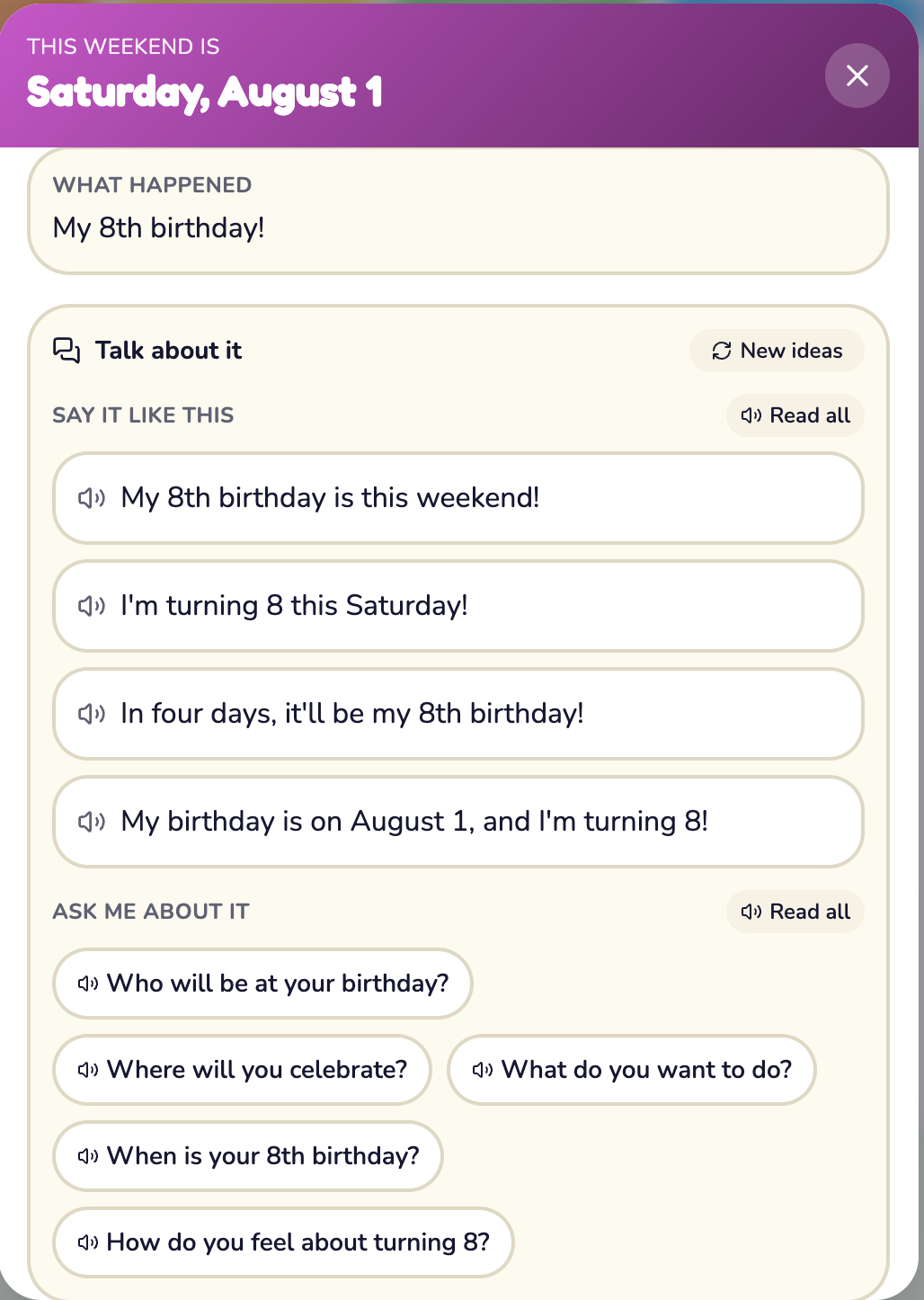
Use the “Talk About It” button on saved days to generate tense-matched practice sentences and recall questions for parents and therapists. Tap any sentence to hear it read aloud.
Teachers & Clinicians
Similarly, teachers and clinicians can use this app to teach children how calendars work and introduce calendar vocabulary, such as the names of the days and months.
The built-in language also helps children develop an understanding of time by talking about past events and upcoming activities.
Teachers and clinicians can add photos to help children remember and discuss events that occurred at school or during therapy.
They can also share the calendar with parents, allowing families to continue these conversations at home and support their child’s ability to recall and talk about their experiences.
Save the website to your home screen for quick and easy access.

Tap the Share button.
Select “Add to Home Screen.”
Name it “[Child’s Name]’s Calendar.”
Tap Add.
Once it has been added, the calendar icon will appear on your home screen. Tapping the icon will open the calendar app directly.